Setting Up Your Services
Setting up Your Services
If you need help with setting up your shop, follow the steps below!
How to create a Service?
Go to the Artist Space, hit the Services button, and you’ll see the space where all your services will be displayed. To start a new one, press the Create New Service button in the corner.

Upon clicking the button, you’ll see a pop-up window where you fill in all the details of your new service. The left side of the desktop window is for examples of the service you will be providing, you can add them from your device, via a YouTube link or directly from your portfolio on Ivy! You need to provide at least three examples.
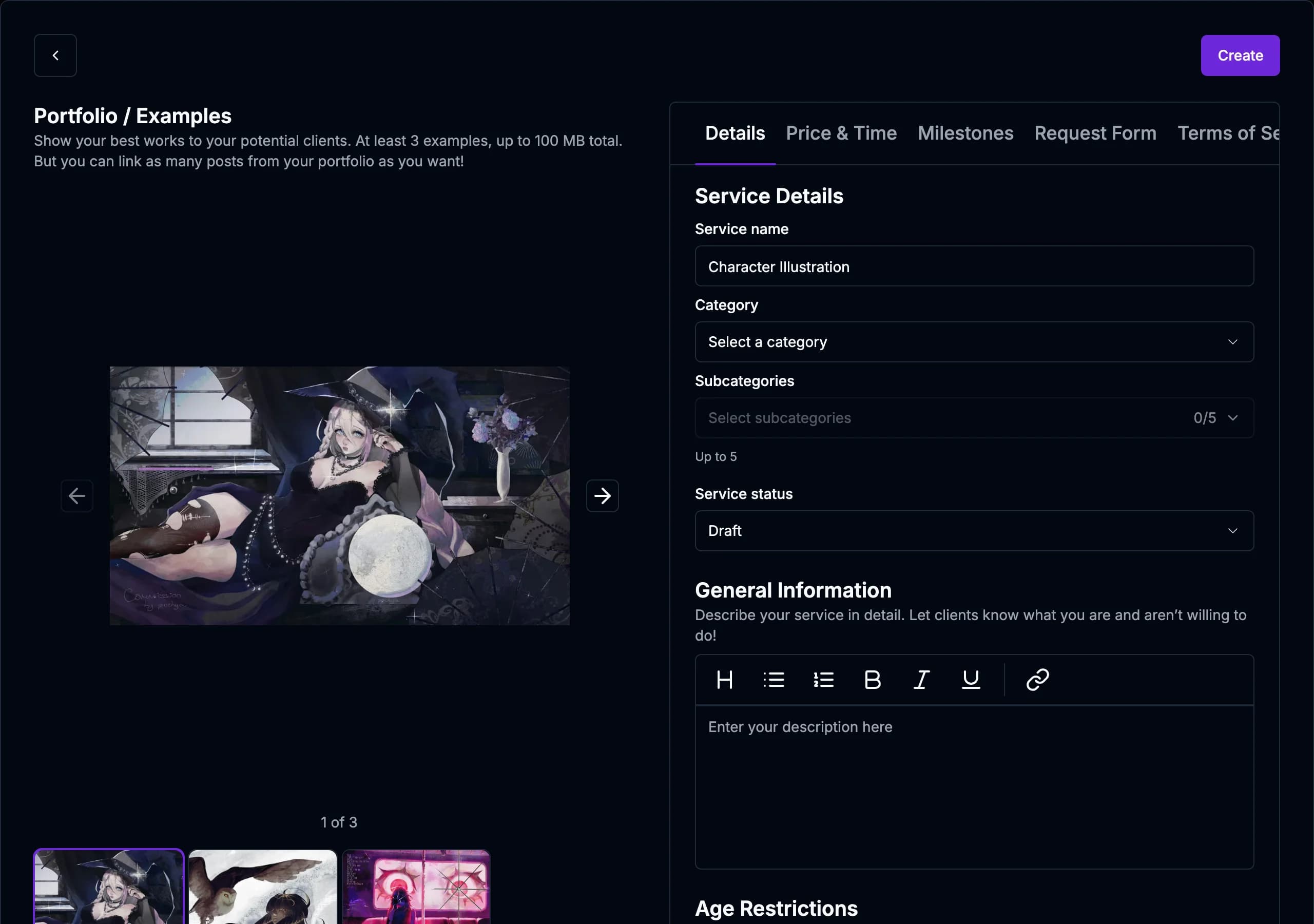
The right side of the window is for Service Details. In the first tab, you set up the general outline of your service, such as its name, the number of slots available, service description, etc. Try to provide as much detail as you can!
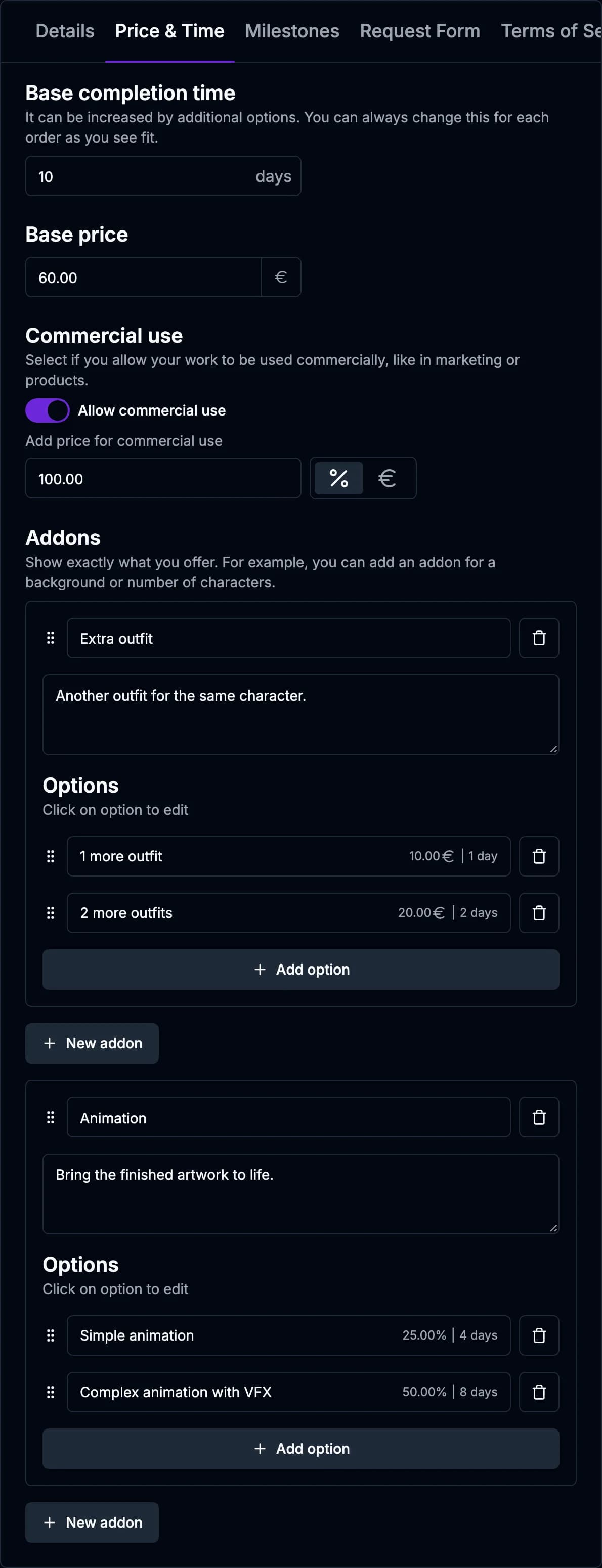
Next, move to the Price & Time tab. Here you specify how much time you would need to complete this type of service, the price you would charge for it, and whether you allow your work to be used commercially. This is also the tab where you create Addons — additions to your core service (e.g. complex background, more characters, etc.), which may take more time and may or may not have an additional cost — it’s up to you.
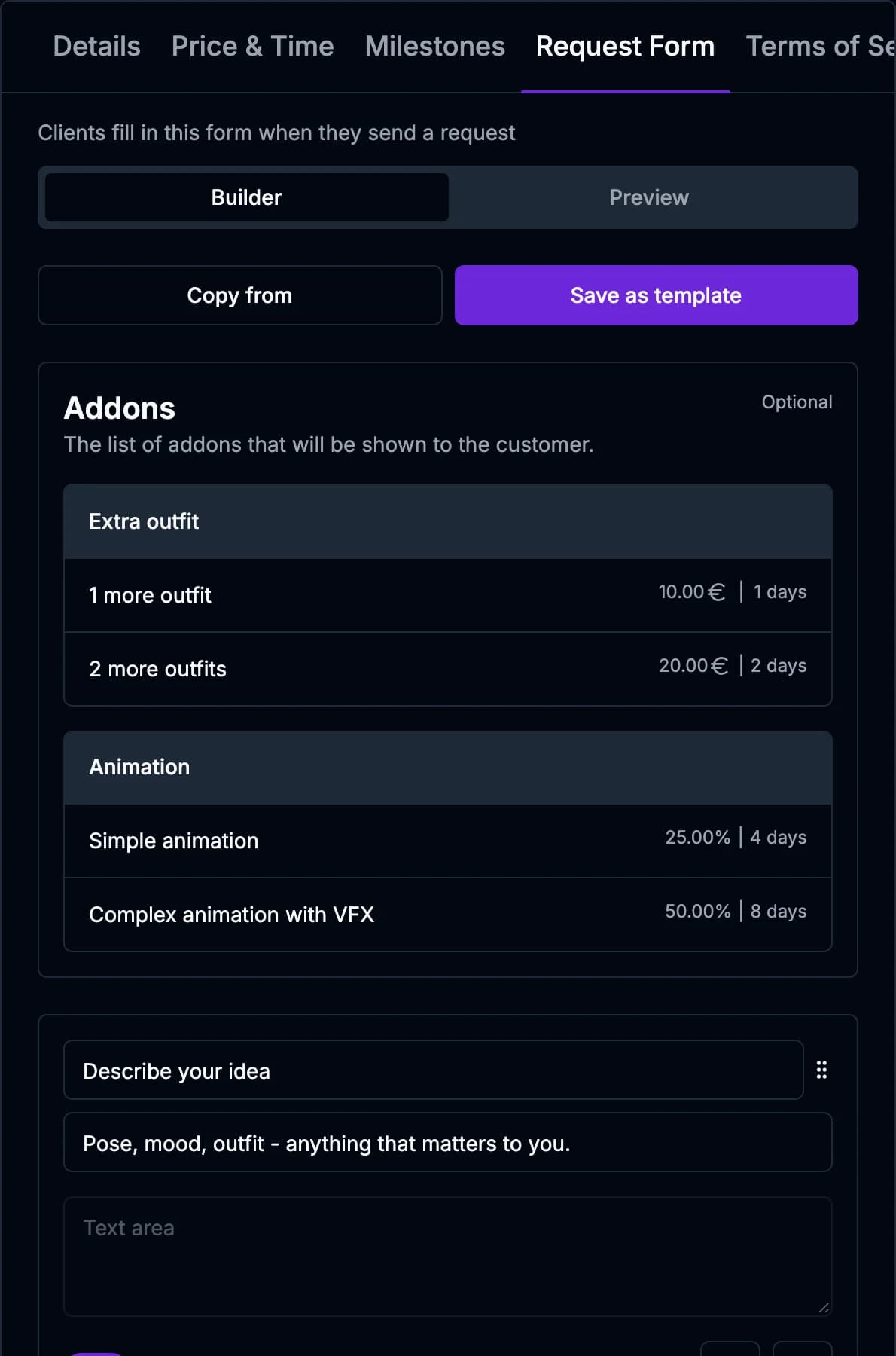
Then move to the Request Form tab. In this tab, you set up the type of information you need to collect from your client in order to accept or deny their request. You can ask for detailed descriptions of their idea via text field, references they have in mind via image field, and anything else you think you’ll need. But don’t worry, you can always contact your client in the Chat!
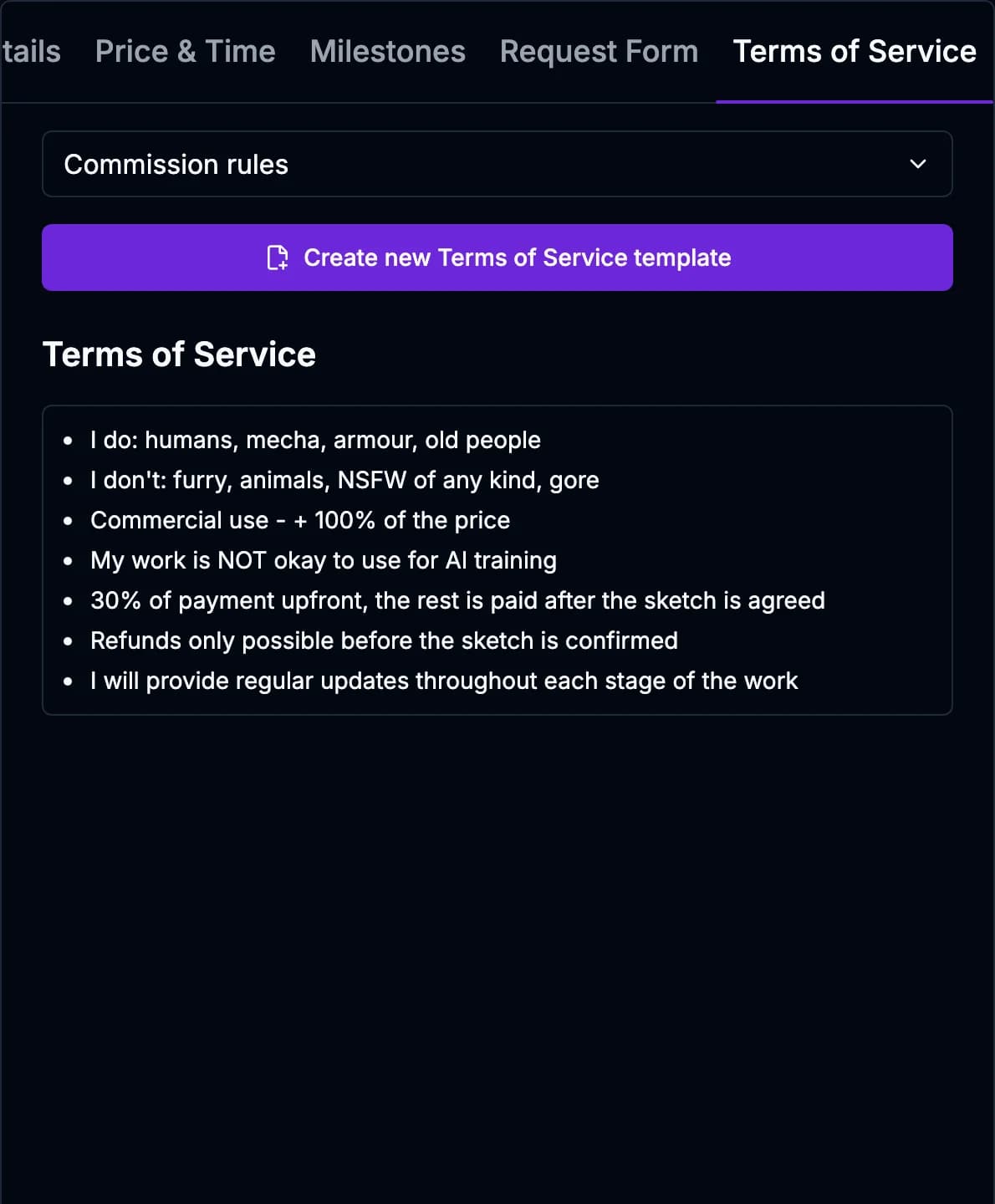
Lastly, hit the Terms of Service tab. This is the space for you to set up a policy, the rules you work by, so try to write it in the greatest detail possible. You don’t have to write a separate policy for each of your services — just copy an already existing one if you think it fits! For details on how to write a policy, please check out this article.
Still have questions left? Contact us via email! socials@ivyart.co